
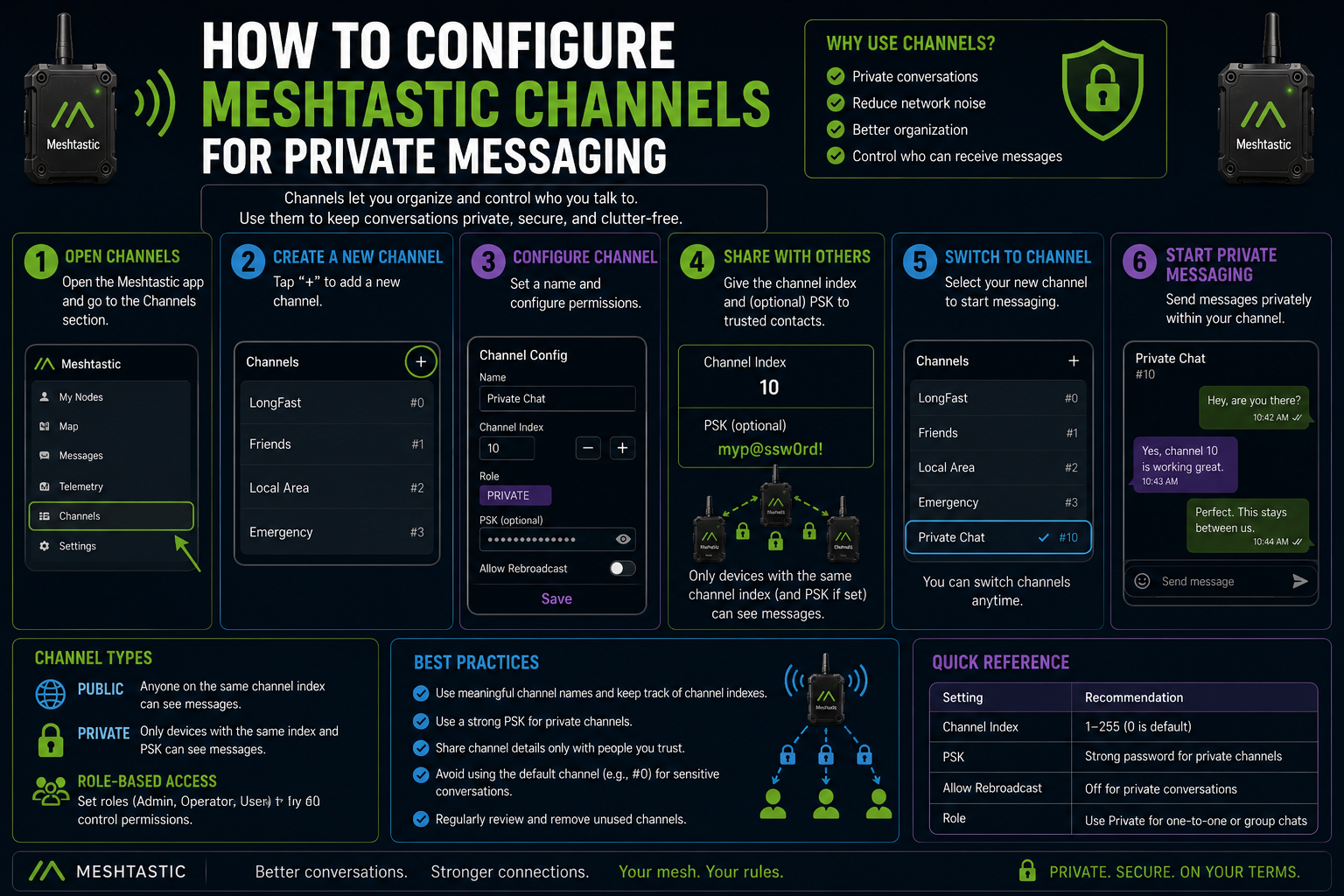
You are standing on a hill with three friends. Everyone has a Meshtastic device. You fire up the app and start messaging. It works. But there is one thing that might not have occurred to you yet: so can everyone else in the area with a Meshtastic node. The default channel is essentially open. If you want to configure Meshtastic channels for private messaging, you need to understand how channels and encryption work, then spend about 2 minutes setting them up properly.
The good news is that Meshtastic makes this genuinely easy once you know what you are doing.
What a Meshtastic channel actually is
A channel in Meshtastic is not a radio frequency band. All devices share the same frequency and physical layer settings. A channel is really a combination of two things: a name and a pre-shared key, which is a 256-bit AES encryption key.
When you send a message, your device encrypts it using that key. Any other device with the same channel name and the same key can decrypt and read it. Anyone without the key sees noise. That is the entire privacy model in a sentence.
The default channel is called LongFast, and it uses a well-known default key that ships with every Meshtastic device. Effectively, it is a public channel. Perfect for general mesh networking with strangers in your area. Not so perfect for a private conversation with a specific group.
Setting up a private channel
Open the Meshtastic app, go to Radio Configuration, then Channels. You will see a list of channel slots, numbered 0 through 7. Slot 0 is your primary channel. The others are secondary channels that can run alongside it.
Tap on a slot to configure it. You need to set two things:
Channel name — something short that identifies the group, like "hikers" or "home"
PSK (pre-shared key) — the encryption key everyone in the group must share
For the key, tap Generate to create a random 256-bit key. This is the right approach for a genuinely private channel. The app will create something cryptographically random, which is exactly what you want. You can also set the key manually if you need to match a key that was set elsewhere, but generated keys are more secure.
Save the channel. Your device now has a configured private channel.
Sharing the channel with your group
Here is the part that makes this practical: Meshtastic generates a shareable link and QR code for each channel. Tap the channel, then tap the share option. You will get a URL that encodes the channel name and the encryption key.
Anyone who opens that link on a device with the Meshtastic app installed gets prompted to add the channel automatically. They do not need to type the key manually. The URL carries everything.
You can also display the QR code on your screen and let someone scan it with their own device. Either way, the setup takes about ten seconds on the receiving end.
Keep that URL and QR code private. It contains the encryption key. If someone intercepts it, they can join your channel.
Primary channel vs secondary channels
The primary channel (slot 0) is the main one. It handles most traffic and is also used for GPS position broadcasts when location sharing is enabled. Secondary channels (slots 1 through 7) are for additional groups or purposes that run alongside the primary channel.
A common setup: keep LongFast as the primary so you stay connected to the wider local mesh, and add a private secondary channel for your group's actual messages. Your device handles both simultaneously.
One thing to know: the primary channel's settings affect the radio's physical parameters. If you change the primary channel name from LongFast to a custom name, you also need to ensure the modem preset settings match those of other devices you want to reach on the general mesh. If you are just adding a secondary private channel, you do not need to worry about this at all.
What about direct messages?
Meshtastic does support direct messages between specific nodes. In the app, you can tap a contact and send them a message addressed to their node ID rather than broadcasting it to a channel. These messages are still routed through the mesh in the normal way, but they are encrypted to the destination node specifically, using the channel key.
Direct messages are useful, but they are not a replacement for a private channel when you are messaging a group. For group privacy, the shared channel approach is the right one.
The honest limitations
Meshtastic's channel encryption is real. AES-256 is the same standard used for serious security applications, and a randomly generated key is practically unbrute-forceable.
That said, there are a few things worth knowing. First, the mesh routing layer is not fully hidden: other Meshtastic nodes can see that a message is being relayed even if they cannot read the content. They see packet headers including source and destination node IDs. The message body is encrypted, but the fact that communication is happening is not invisible.
Second, if you lose the channel URL or QR code and cannot remember the key, you will be unable to recover it. The key is stored on your device, but if you reset the device or reinstall the app without backing up, it will be lost. Share the channel before something like that happens.
Third, the security is only as good as the people you share the key with. If someone in your group carelessly shares the QR code, the channel is compromised. There is no way to revoke access for a single member without generating a new key and redistributing it to everyone else.
Getting this right before you need it
Configuring a private channel takes about five minutes the first time, including distributing it to your group. The second time, it takes thirty seconds. The time to set it up is not when you are already out in the field, wondering why strangers are reading your messages.
If you are building a mesh network for a specific group, whether that is a hiking party, a street team, or a family communication setup for emergencies, a dedicated private channel is not optional. It is just the right way to do it. The default channel is for meeting strangers on the mesh. The private channel is for your actual group.